Table of Contents
Integrating with Sentinel or IMMIX
Integrate your TetherX video system with Sentinel or IMMIX control room software to send Events and MJPEG streams to your central monitoring station.
Integration Overview
These third-party platforms require:
- Sites setup with video sources
- SMTP configuration for email notifications
- Control room assignment for operators
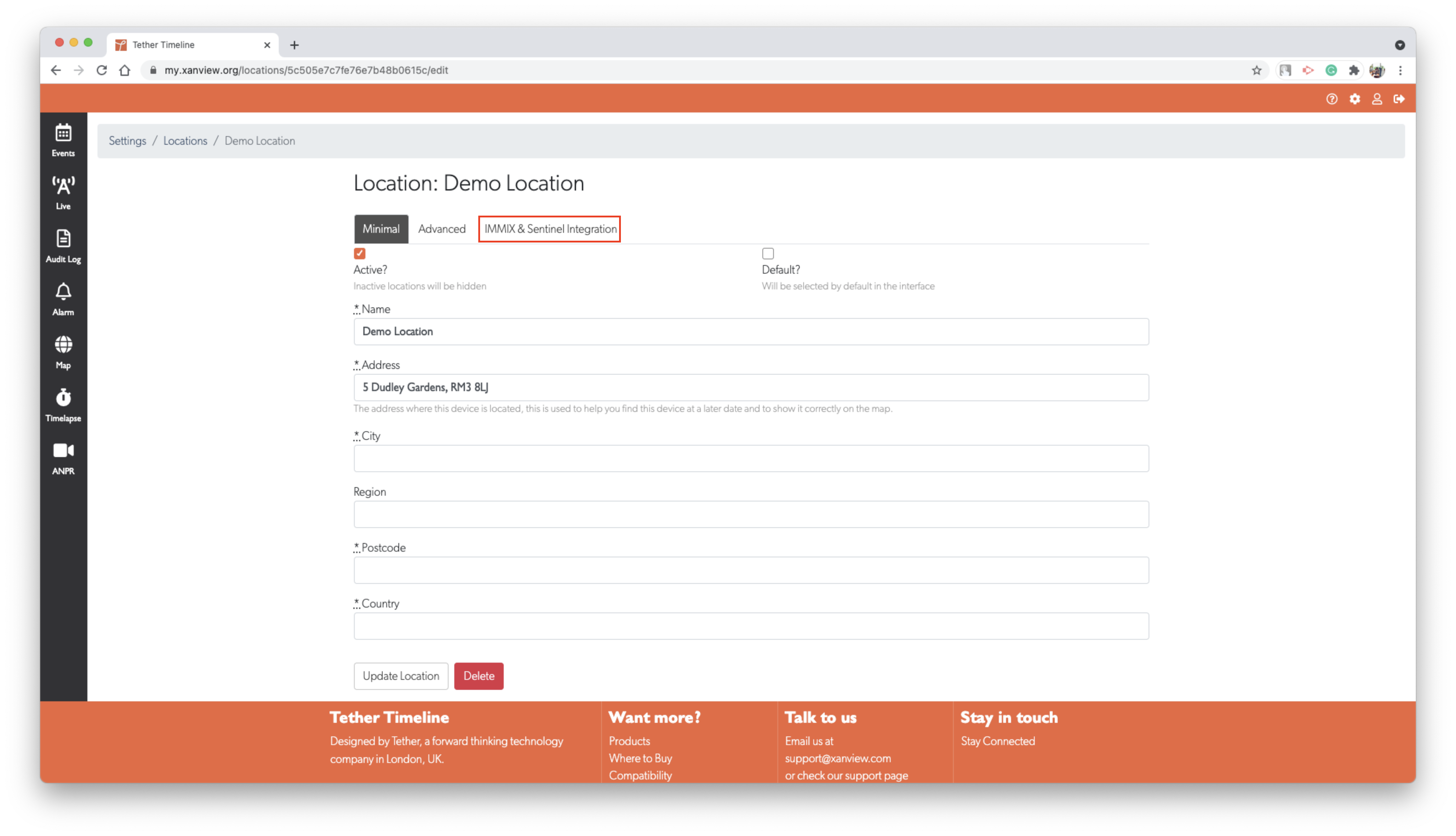
Step 1: Create Site
Go to Admin > Sites and click New Site
Enter site details:
- Name: Your site name
- Description: Optional site details
Click Save
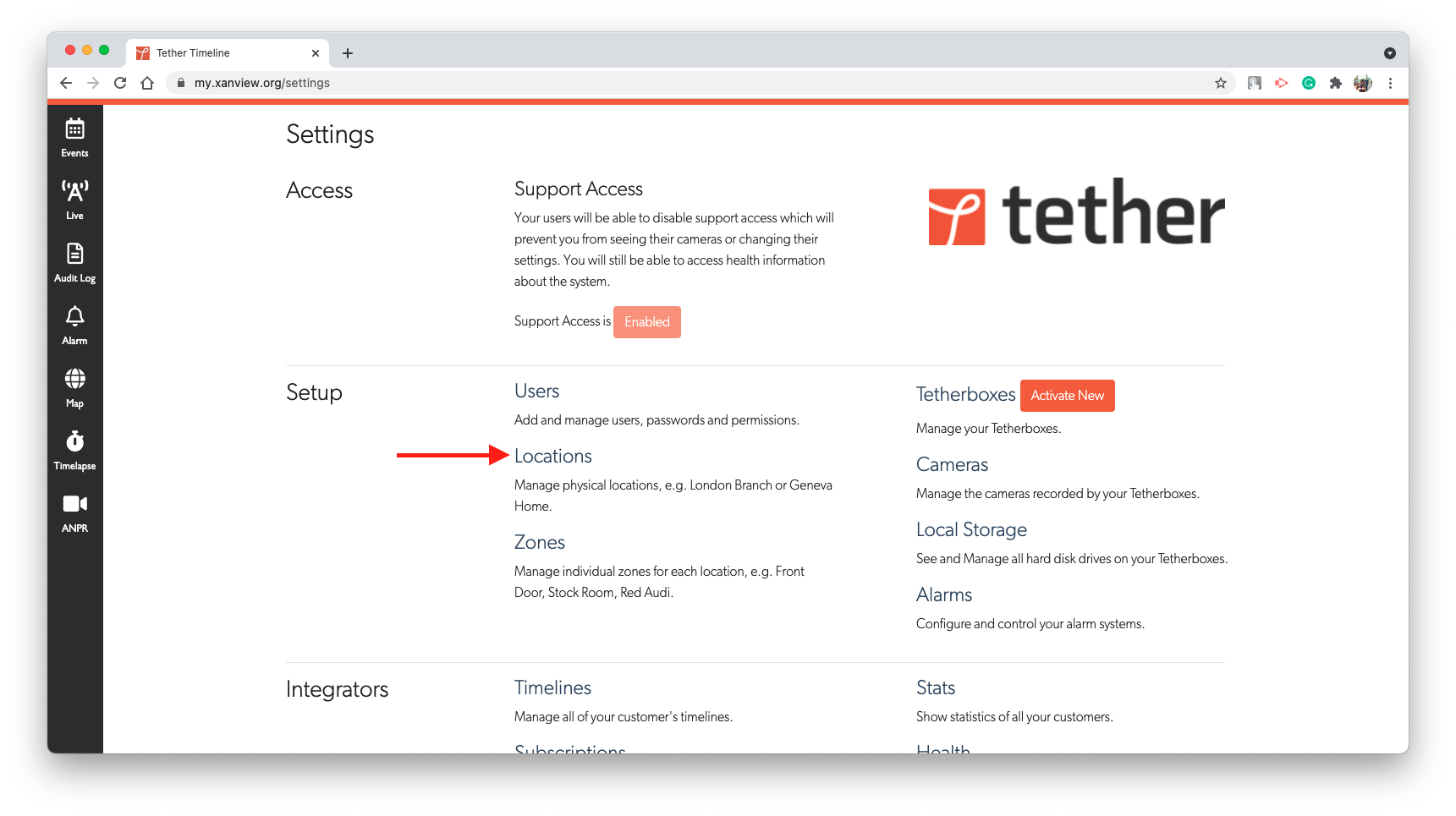
Step 2: Add Video Sources
Open the site you just created and go to Video or Cameras tab
Click Add Video Source and enter camera details:
- Name: Camera identifier
- Hostname/IP: Camera IP address or hostname
- Stream type: Select MJPEG or RTSP
- Port: 80 (MJPEG) or 554 (RTSP)
- Credentials: Enter camera username and password if required
Click Save for each source
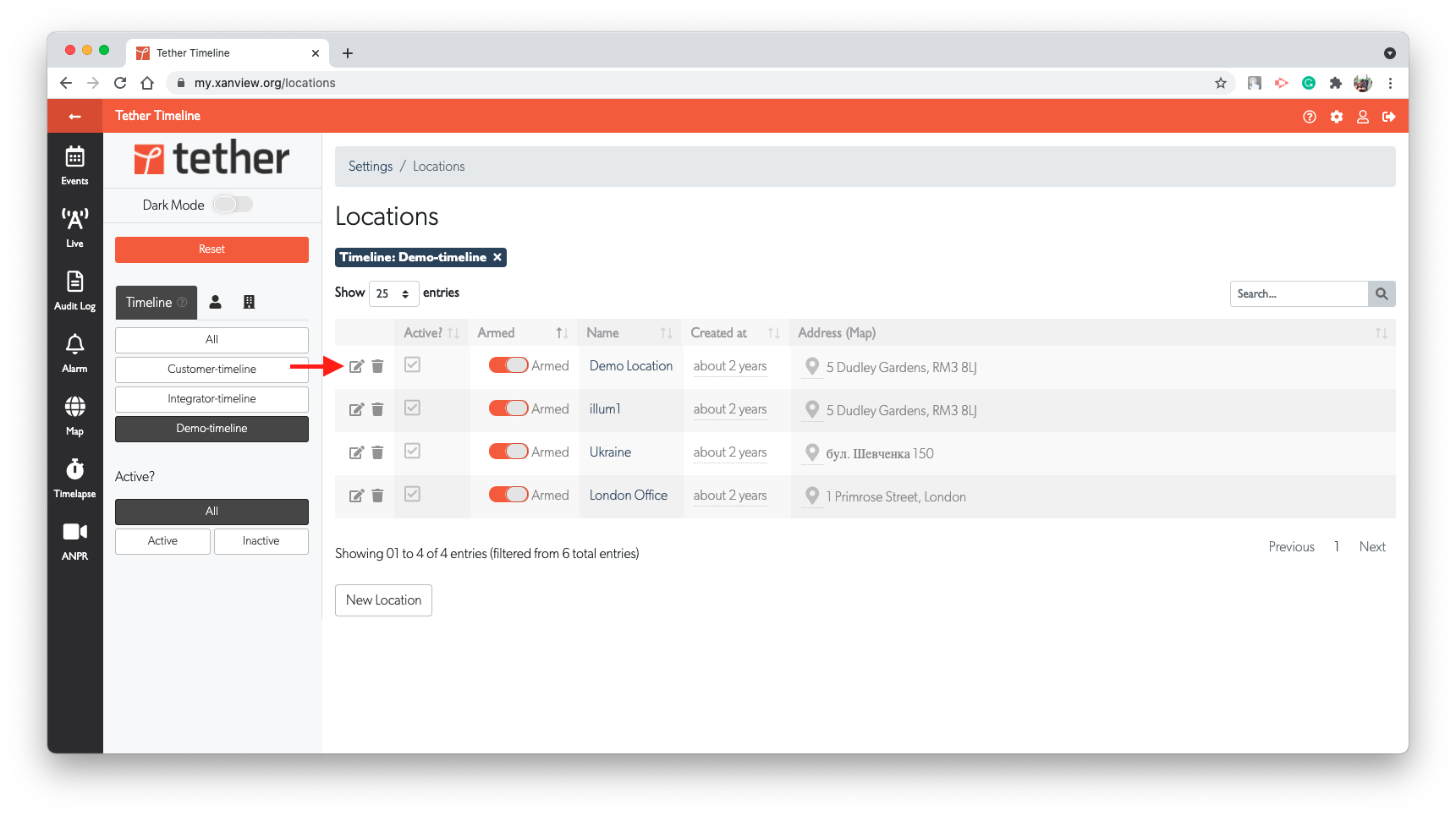
Step 3: Configure Email Notifications
Go to Admin > Settings or System Configuration and select Email or SMTP tab
Enter SMTP details:
- Server: Your mail server hostname
- Port: 25, 465, or 587 (depends on server)
- Username: SMTP account username
- Password: SMTP account password
- From Address: Email address for notifications
Click Test Email to verify and save changes
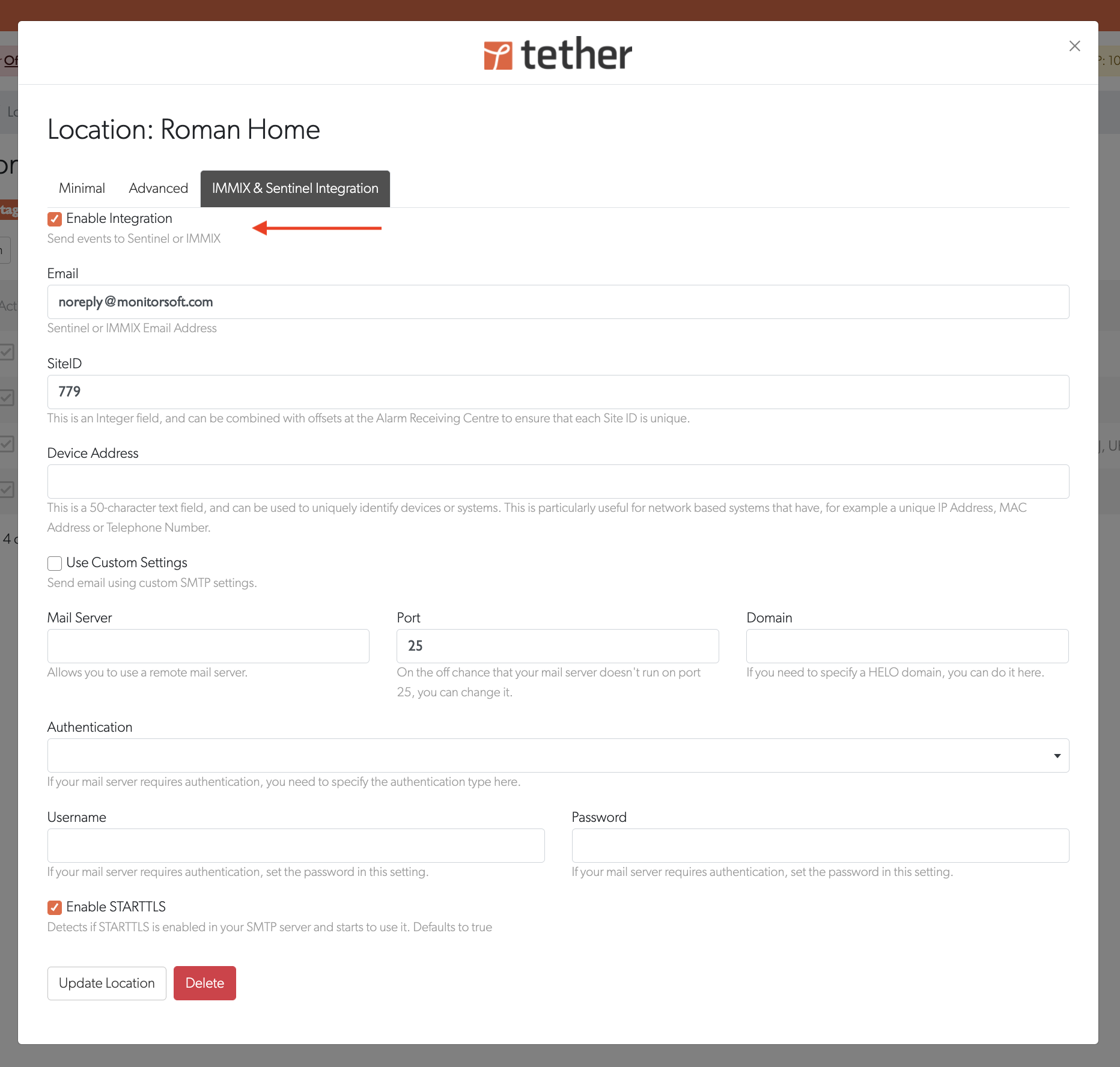
Step 4: Assign Control Room
Go to Admin > Control Rooms or Operators and select or create a control room/operator
Assign the site(s) created in Step 1
Set notification preferences (which events trigger alerts)
Save assignment
Verification
- Login to Sentinel/IMMIX as an operator
- Navigate to Sites list
- Click your site to view video sources
- Verify all cameras appear with video streams available
- Test triggering an alert to confirm email notifications work
Tips
- Network access: Ensure TetherBox and control room software can reach each other on your network
- Firewall rules: Open firewall ports for MJPEG (80) or RTSP (554) streams
- Credentials: Store camera credentials securely in the control room system
- Stream selection: Use lower resolution streams for remote viewing to conserve bandwidth
Related Articles
- How to Enable ONVIF - ONVIF camera setup
- Tunnelling to Network Devices - Remote access
Last updated: January 17, 2026
