Table of Contents
TetherBox Went Offline
Follow these steps to bring your TetherBoxes back online or gather the information we need to help you.
Quick Links:
Tip: Check Status First - View your TetherBoxes status page (Admin → TetherBoxes → click your unit) to see any issues detected before it went offline. See Connection Requirements for network details.
Warning: Common Causes - Power (unplugged, power supply failure, power surge damage), Internet (bad cable, no connection, blocked port 443, Powerline/WiFi bridges), or Hardware (drive failure, motherboard).
Visual Check
Verify your TetherBox has both power and network connected:
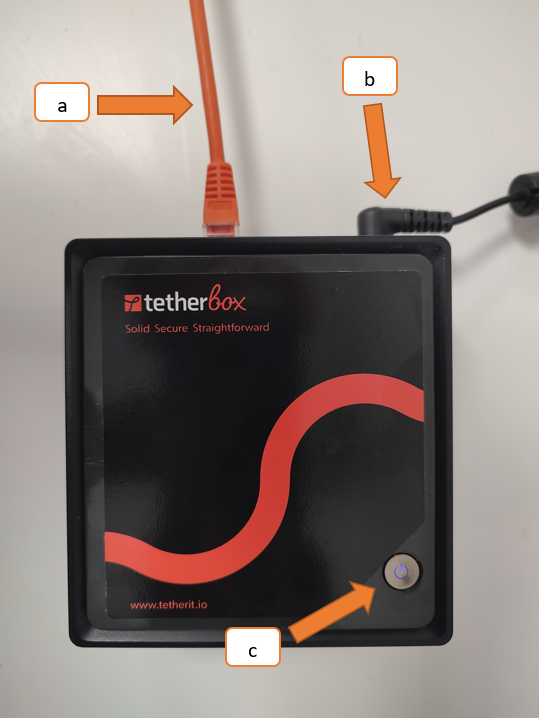
- (a) Internet cable - Check for damage and ensure connectors are secure at both ends
- (b) Power cable - Ensure fully inserted and power is on
- (c) Power LED - Should be continuously lit (not flashing or off)
Step 1 of 3: Check the Internet
Test the connection: Use the same Internet connection as your TetherBoxes to verify it works. This must be done on-site.
Connect directly to router: Bypass any switches, Powerline, or WiFi bridges by connecting the TetherBoxes directly to your router.
Test the cable: Unplug the network cable from the TetherBoxes, connect it to a laptop, disable WiFi, and verify you can access https://app.timeline.is (opens in a new tab).
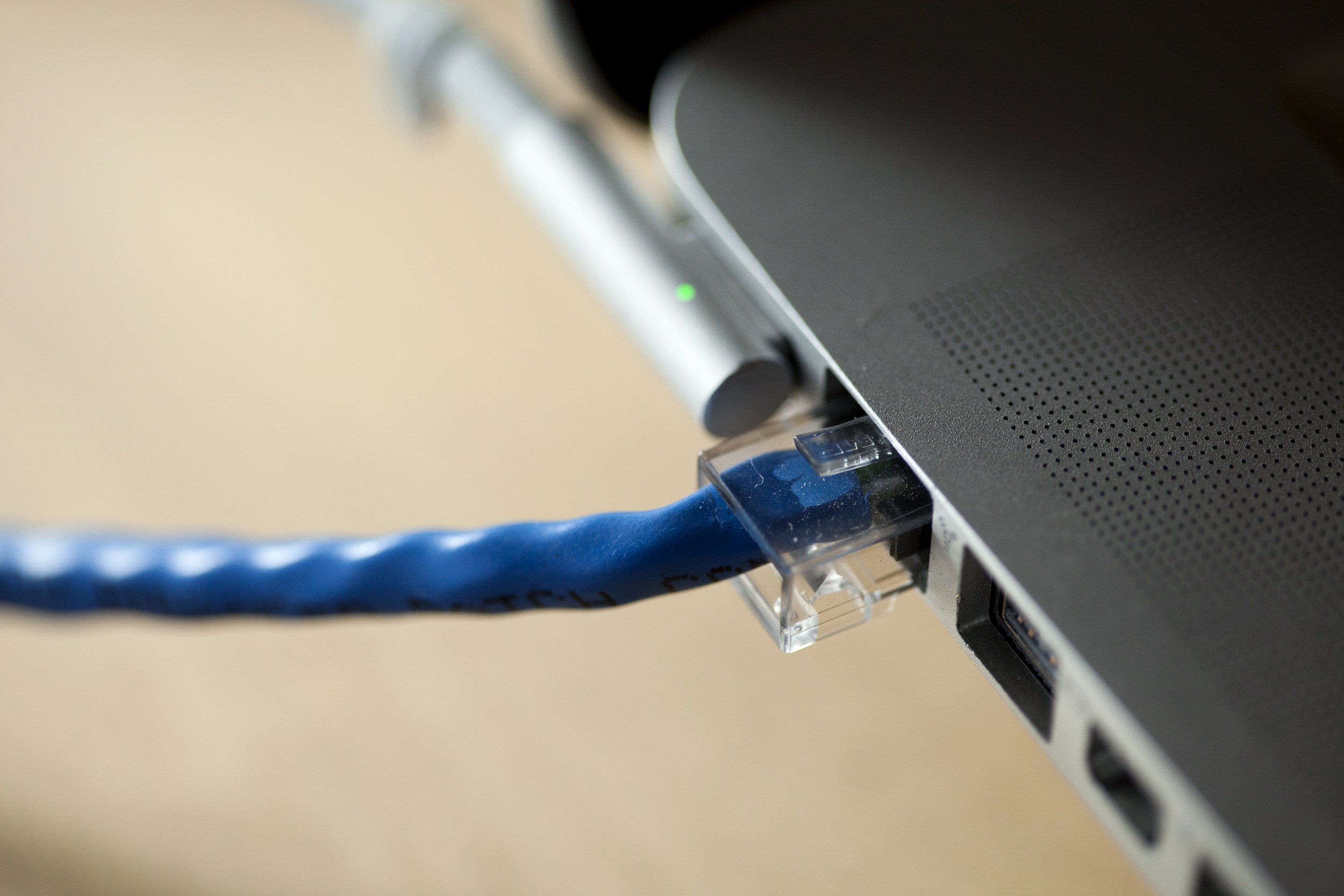
Check the RJ45 LEDs: Look at the network port on the back of the TetherBox.
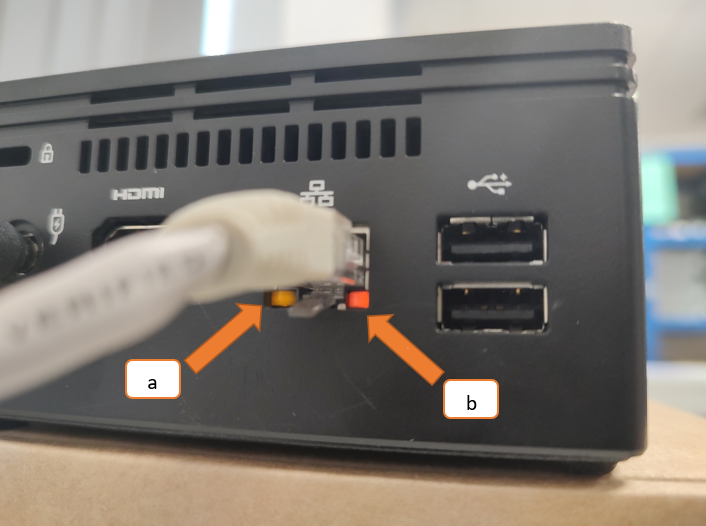
- (a) Link LED - Should be solid (indicates physical connection)
- (b) Activity LED - Should be blinking (indicates network traffic)
If both LEDs are off or only one is lit without blinking, the TetherBox is not connecting to the network. Check all connections and try a different cable.
Tip: Bad cables often fail when wiggled or when ports heat up. Try replacing the cable.
Step 2 of 3: Check the Power
Check LEDs: The power LED (top/front) should be steady on. Network LEDs (back) should show steady orange and blinking green.
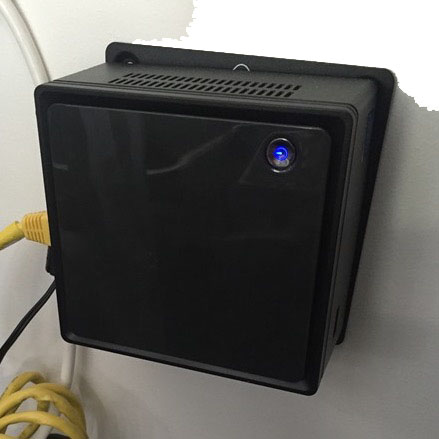
Warning: The green network LED stays on even when the unit is off. Always check the power LED. If the unit won't stay on, you likely need a new power supply.
Reboot the unit:
- Press the power button briefly (do not hold)
- Wait up to 1 minute for it to power off
- Press briefly again to power back on
Tip: If it doesn't power off after 1 minute, hold the button for 5 seconds to force off.
Step 3 of 3: Submit a Report
If the steps above didn't help, we need more information to diagnose the issue.
Connect a monitor: Plug a TV or monitor into the TetherBoxes's HDMI port.
Tip: Raspberry Pi 4 and Raspberry Pi 5 TetherBoxes have micro-HDMI (Type D) ports, not full-size HDMI. You will need a micro-HDMI to HDMI cable or adapter.
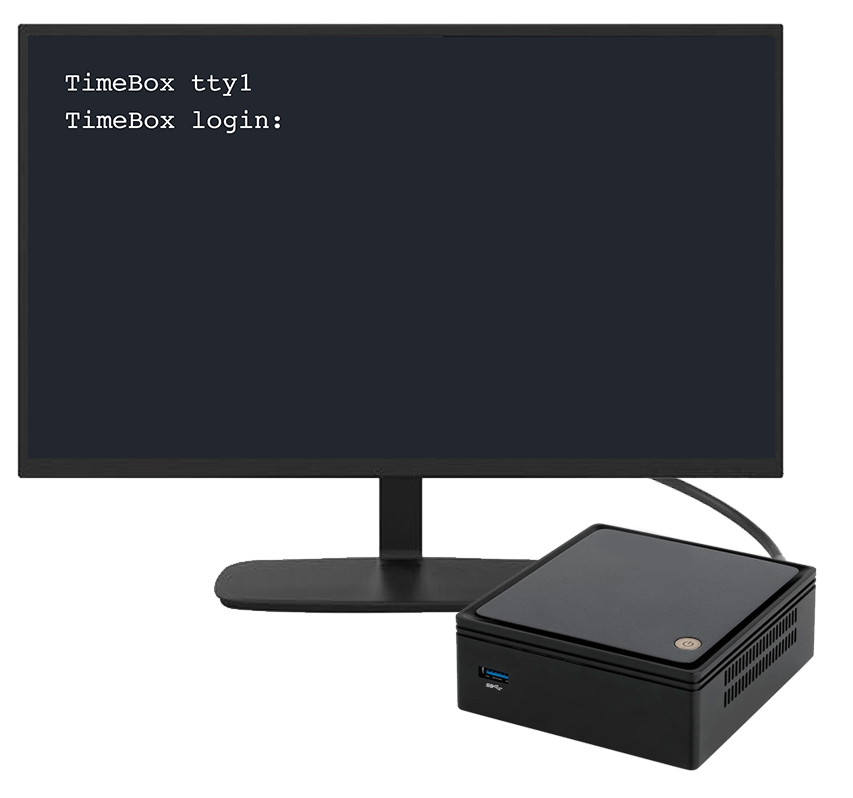
Warning: Required - Record a 2-minute video of the complete boot process from power-on. We cannot diagnose the issue without this video.
Submit your offline report through the TetherX Platform support system with the video attached.
Tip: Enterprise Networks - Also include network topology, switch details, VLANs/firewalls, and recent network changes.
Referenced in:

