Table of Contents
Q4 2026 Release Notes
October - December 2026 · Work in progress
This quarter adds footage search in your own words, more detailed AI detections and counting, camera automations, a combined live and recorded event player, and clearer storage health. Follow the linked help articles for setup and full reference material.
Find Footage in Your Own Words
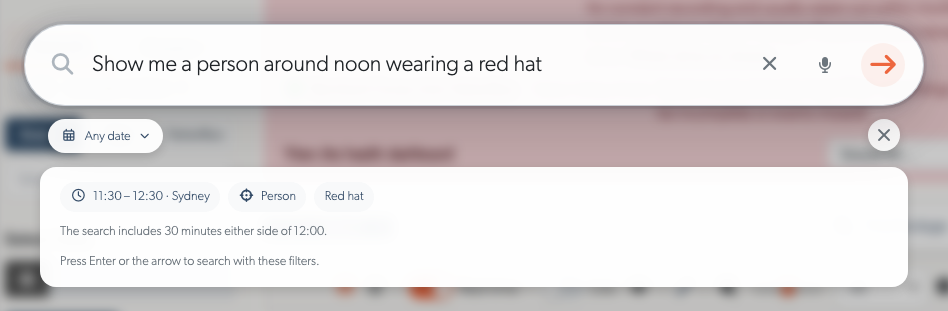
Describe the incident: Open Find footage on Events and type something such as "a person wearing a red hat around noon", or dictate it in supported browsers. Check the suggested sites, dates and detections, then search. Searches understand recorded sounds such as barking and local postcodes for each site's country. See Natural Language Search.
Search by place: Each recording camera has a description of what it sees, generated from a live image. Edit it, or ask the AI to refresh it, so searches for places such as loading docks and service yards find the right cameras.
Find people and vehicles by appearance: The Appearance filter finds dogs, cats and birds; cars, motorcycles, buses, trucks and bicycles; and people by clothing colour, hair, sleeves, hat, glasses, bag and recognised name, and vehicles by make and number plate. Each option appears once a camera has reported it. Searches for rare combinations return in milliseconds, however many events the timeline holds. Appearance searches cannot add detail to footage recorded before the detection existed.
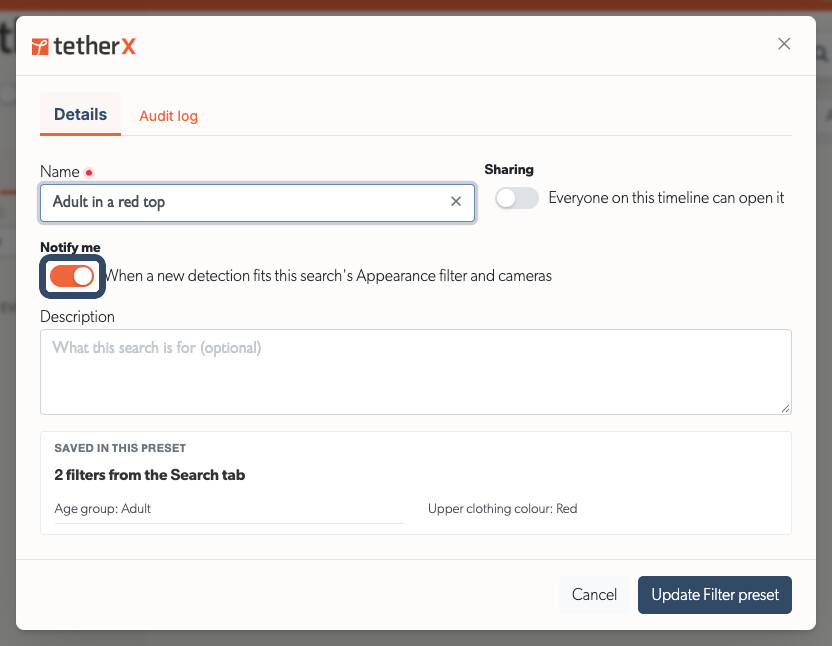
Be told when a match appears: Switch on Notify me on a saved search that uses the Appearance filter, such as "adult in a red top on the car park cameras", and receive a push notification or email when a new detection matches. You are notified once per event, and never twice for an event your camera notification settings already reported. See Events.
Safety equipment and covered faces: Find people missing hi-vis or a hard hat, or with a covered face. These detections are off by default; contact TetherX support to enable them.
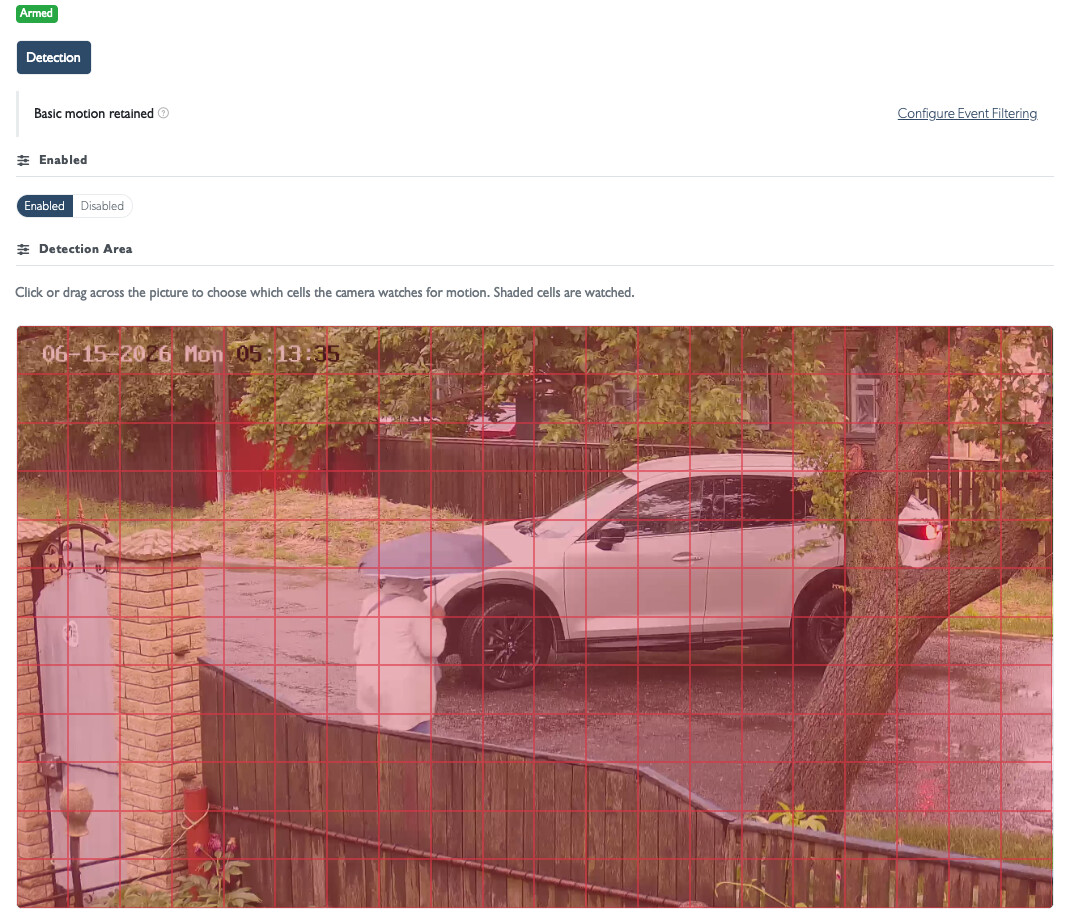
Motion stays out of the way: On a timeline whose cameras report people, vehicles or line crossings, the Exclude motion switch is on by default. Switch it off to list plain motion events as well.
Clear progress on long searches: Events tells a search still running apart from one with no results, explains timeouts and adds new matches as they arrive. Date and time searches on timelines with a long history now return promptly instead of timing out after 45 seconds.
Events and Playback
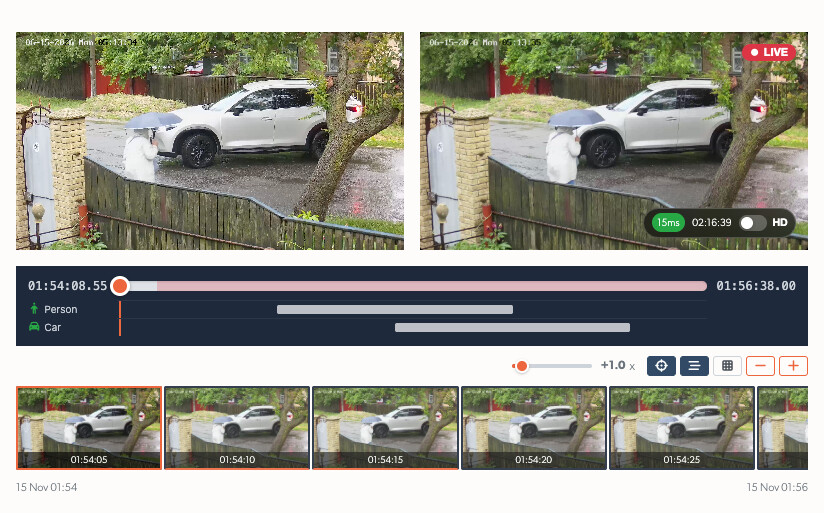
Live and recorded footage together: An event still in progress, or finished within the last three hours, shows live video beside its recording on one shared timeline. Playback starts as soon as footage arrives.
See when each detection happened: Under the video, each kind of detection has its own lane, with a bar for every moment it was seen. Select a bar to play from that moment. The button beside the grid view button shows or hides the lanes. TetherX AI detections are orange, Lumana detections are green, and a weapon or face seen on a person is listed as its own row.
Preview an event without opening it: Move the mouse across a thumbnail in the events list, thumbnail view or Monitoring Strip to scrub through images from five seconds before the event to its end.
One report for several events: Select events in the list and export them as a single PDF, with a section for each. Reports keep running after the progress window closes, and you can follow them in a new tab.
A more flexible Monitoring Strip: Resize it, swipe to hide or restore it, and it remembers its width. On phones it opens over the events list. Its thumbnails match the main events list.
Clearer alarm and operator views: Alarm events show the camera's image when one is available, with the alarm icon first on a red background. Operator notes appear before Action Taken, and new events arrive without dimming the page.
Detection notifications: Push notifications for detections, saved search matches, watched number plates and automations play the standard notification sound, keeping the alarm sound for on-site alarms such as panic buttons. Tapping one opens the event at the moment of the detection. Accounts set to receive analytics notifications by push only now receive them.
Accurate event times: A camera set to the wrong time zone no longer stretches an event over several hours. Earlier events affected this way are shortened to the time their recordings cover.
Bulk flags expire: Events flagged together from the events list keep their flag for one year, as a single flag keeps it for its chosen period.
AI Detections and Counting
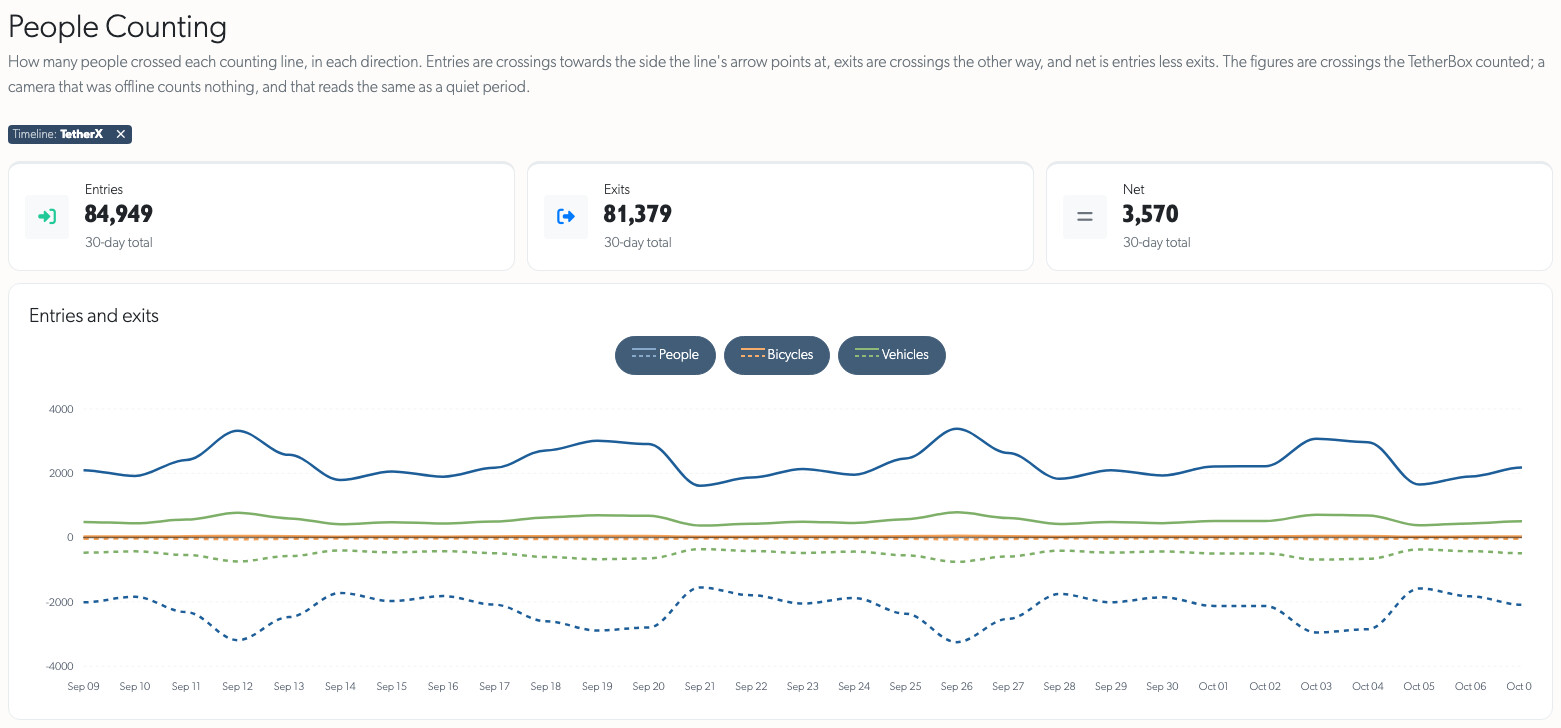
Counting charts: Compare entries and exits for people, bicycles and vehicles, move from daily totals into shorter periods, and filter by time, site, camera or counting line. Drag across the chart to focus on a period, and export the figures to CSV or Excel. Today's incomplete figures stay apart from completed days. See People Counting.
Vehicle types in triggers: Car, Truck, Bus and Motorcycle each have moving and stationary triggers. A vehicle whose type was not identified is shown as Vehicle. Notification, ignore, saved search and automation choices that named Car still match everything they matched before.
See which TetherBoxes can run AI: TetherBox details show whether a unit is AI capable, and the TetherBox list counts AI-capable units and filters by detected Hailo or NVIDIA hardware. Performance readings show how much of the accelerator each AI feature uses, such as People & vehicles, Weapon detection or PPE.
Hikvision classifications: Person and vehicle classifications reported by Hikvision cameras appear on events and reach control rooms under their specific names.
These detections need compatible TetherBox AI software. Camera status explains when an optional detection is unavailable on the installed hardware and links to the relevant guide.
Camera Automations
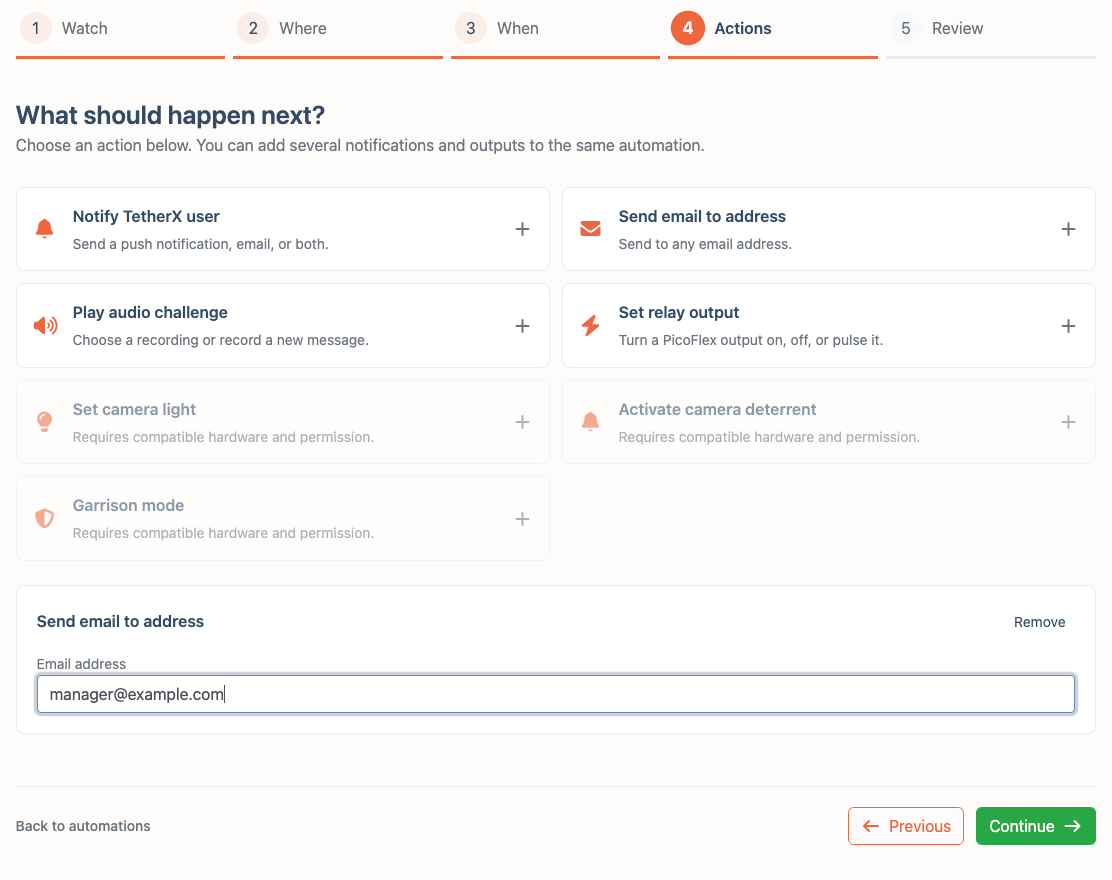
Respond to activity in named areas: Automations and Rules can alert when a counter is unattended or a crowd forms. Draw regions, set thresholds, durations and active hours, then review the notifications and equipment actions before saving.
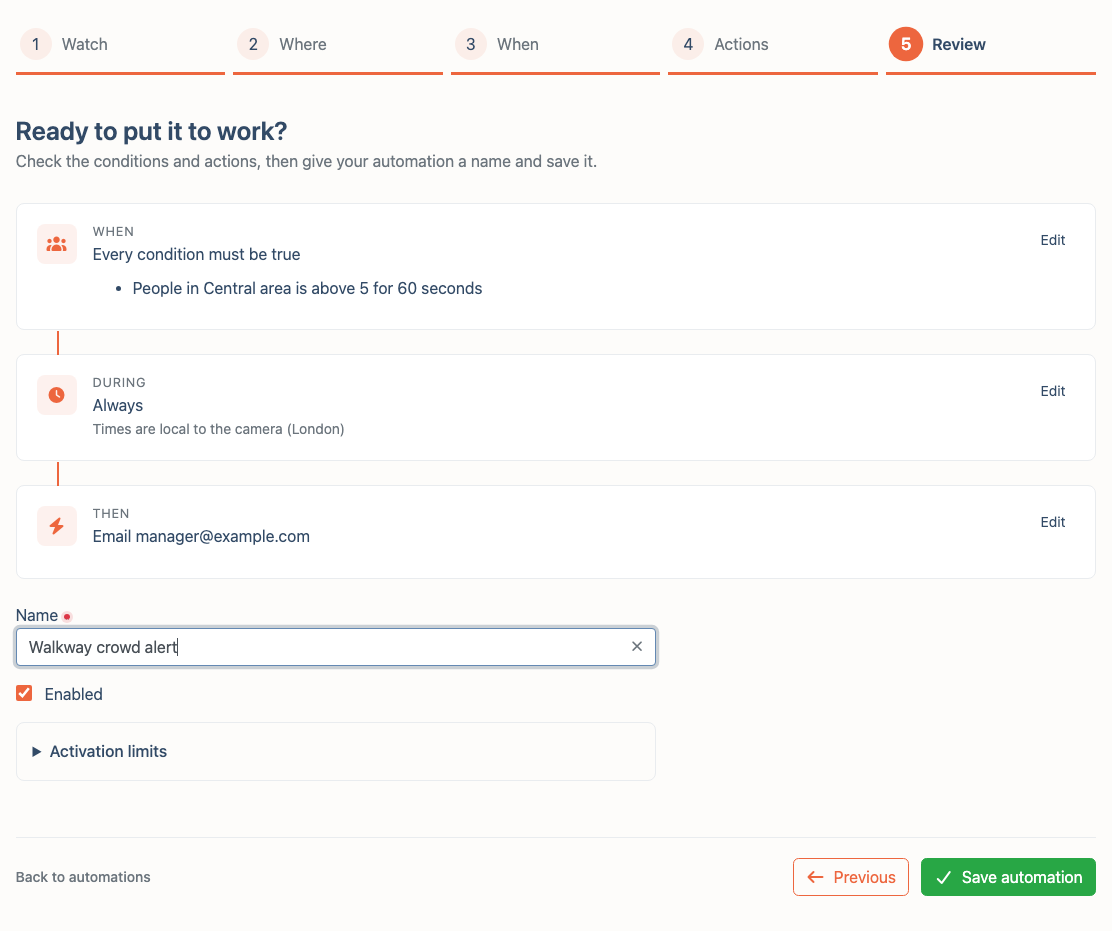
Respond to detections from any source: A Detection rule acts when a camera reports a chosen detection, such as a person, a vehicle, a fall or tailgating, whether it comes from the camera, TetherBox AI or Lumana. Cameras without TetherBox AI can have rules too. The rule's history lists what was detected.
Choose the response: Send notifications or email, play recorded audio, switch PicoFlex outputs, or control supported camera sirens, strobes and lights. Garrison actions operate selected cameras at the same site.
Experimental checks: Staff can enable weapon filters and periodic cleanliness checks for litter, spills, overflowing bins or debris where the installed model supports them.
Automation setup is currently staff-only; contact TetherX support. People count rules need TetherX AI and compatible TetherBox software; Detection rules do not. Output actions need suitable equipment.
Live View
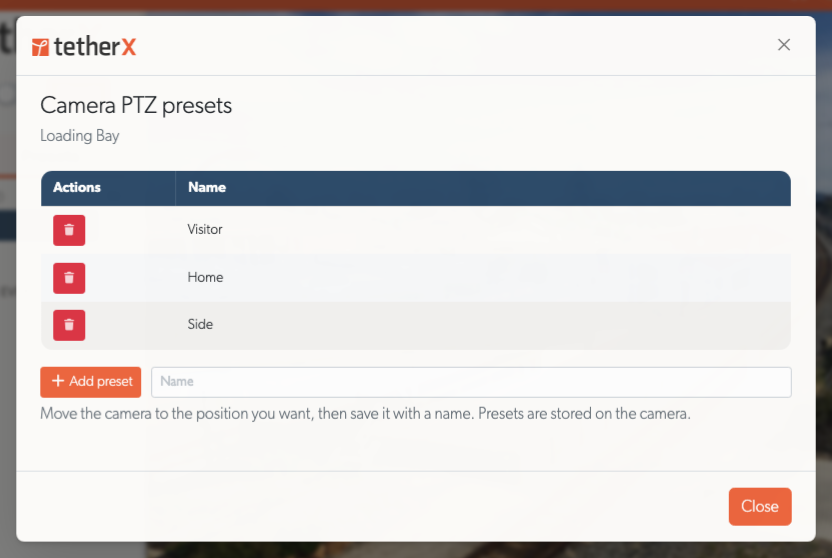
Camera PTZ presets: Save named camera positions and delete them from the Live View preset menu. Positions are stored on the camera. See Live View.
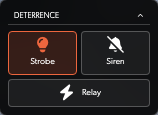
Deterrents where you need them: Live View, fullscreen and the event operator console share Strobe, Siren and Relay controls. Manual Garrison sets off supported sirens and strobes on every permitted camera at the event's site, reporting any that fail. Infrared lamps are labelled IR Light. See Talkdown and the Monitoring Station Operator Guide.
Faster local streaming: Live View connects directly to compatible TetherBoxes on the same network, including in Safari, and falls back to internet streaming when needed. Switching keeps the picture, zoom, audio and pause state. A larger indicator shows local streaming in blue and internet streaming in green. See Local Streaming.
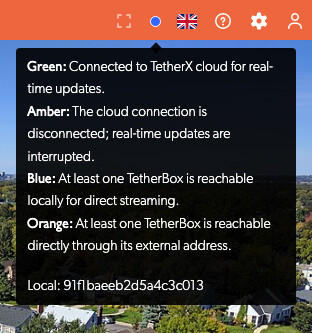
A grid that fits the screen: Without a saved default, Live View picks a camera grid that suits the display, including tall phones and portrait tablets. New tiles and fullscreen start muted.
Problems explained in the tile: A tile names the actual failure, such as no response from the TetherBox or its live view service not responding, instead of a generic camera message. An offline camera reads Camera is offline.
Camera picker follows your filter: With a site or TetherBox chosen in the sidebar, the picker lists only its cameras.
Walls and saved views: Fullscreen fills the display with the camera grid. Preset groups can be renamed and deleted, and deleted cameras have a clear removal action.
Notes for operators: Accounts allowed to read notes see them in Live View, event details and record pages, without gaining permission to edit them.
Direct local streaming needs compatible TetherBox software. Camera walls apply access changes, schedules and sign-outs within one minute.
TetherBox Storage and Health
One health picture everywhere: TetherBox lists, Storage, Drives, the Health Dashboard and the Health Report show the same findings. A unit is Critical for offline or non-recording cameras only when they are more than a fifth of its cameras; fewer is a Warning. A few reconnects in two days show as Info.
Understand drive warnings: Storage brings drive health, USB details, partitions and RAID recovery together, and tells ejected, unplugged, missing and unreadable drives apart. SMR drives carry a performance warning. A start-up disk check that did not finish shows Boot fsck incomplete. Drive age alone no longer raises a hardware fault.
AI health insights: Drive assessments match the health badge and tell usage counters apart from faults. See Recording Storage.
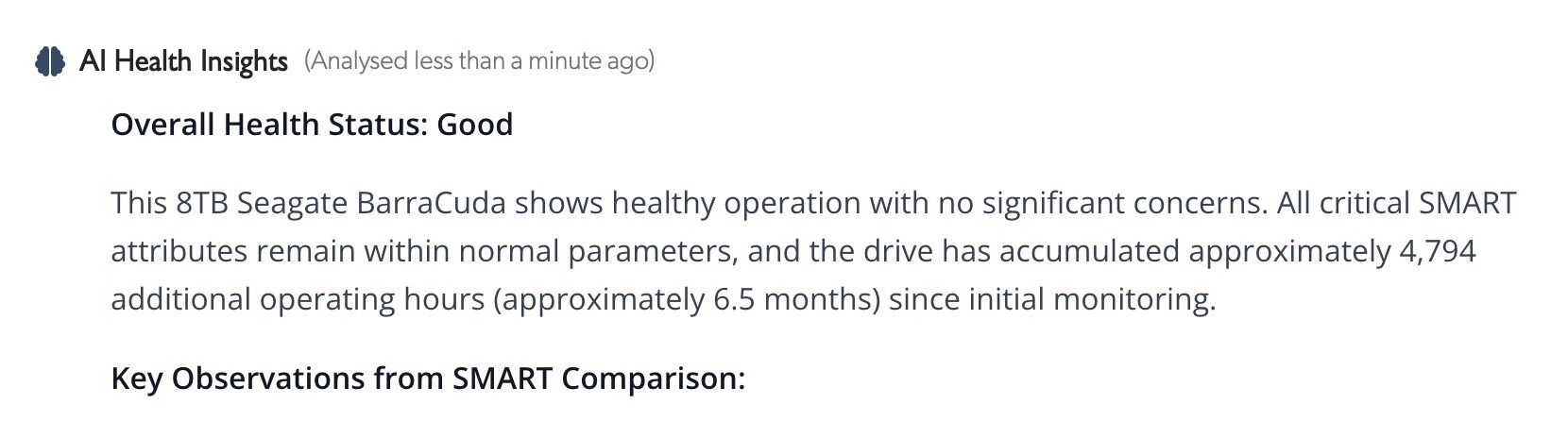
Fix storage without a site visit: Compatible TetherBoxes restart a stalled USB drive and remount it, and format drives confirmed completely blank. Health explains why a drive is unused and lets you format eligible drives. Drives that may hold footage, RAID members and the system disk are protected. Storage, Health and report emails say whether recovery worked or someone needs to reconnect the drive.
Power-up after a power cut: A TetherBox whose BIOS will not switch it back on after a power cut shows a Warning in Health and in the health report email, with a link to BIOS Settings.
Network conflicts: The TetherBox page warns when another device answers on the unit's own IP address, and the Network tab shows the responding MAC addresses.
Retire and consolidate units: Disabled TetherBoxes can be moved into one timeline, and their cloud event history cleared, without being brought online; camera settings and local footage are kept. Moving the last TetherBox out of a timeline removes the empty timeline. Disabling a compatible TetherBox also stops its camera streaming and device monitoring.
Clearer unit management: Network details use consistent LAN numbering and Mbps rates. New units on the Australia, North America and India clouds start in a regional timezone. Failed updates show the reason.
Hardware guides: Compact AI demo builds for Australia, Canada and the UK, with local prices, and clearer drive recommendations for recording and boot disks. See Storage Hardware Recommendations and Replacing a TetherBox Drive.
RAID reporting, USB recovery, automatic drive setup and the start-up disk check need compatible TetherBox software.
Cameras and Devices
Camera settings for administrators and integrators: Accounts that can manage a camera can edit its supported video, audio and picture settings under API → Settings. Hikvision NVR detection schedules, analysis location and alarm confidence can be set there too. See Camera API Tab and Manual Camera Configuration.
LILIN detection rules: Edit motion, tampering, abnormal audio, intrusion, line-crossing, loitering, abandoned and removed object, and number plate rules under API. Switch rules on per zone, choose object types and outputs, set confidence and object sizes, and draw zones over the live picture. Requires compatible TetherBox software.
Stream quality at a glance: Camera status highlights packet loss and jitter when they affect the stream.
Recognisable equipment: Product photos cover more models, including TVT, Dahua and Akuvox, and appear even when a camera rejects its password. A camera built for another brand shows every maker it names. Firmware and serial numbers are shown once when both interfaces agree.
Easier configuration: Secondary streams prefer H.264 Main for smoother playback. Camera lists filter by TetherX AI enabled or disabled, and credential failures show guidance. See Automatic Configuration.
Devices list: FTP and SMB services appear beside Web, Video, SSH and VNC, and virtual machines carry a VM label. See How TetherBox Detects Devices.
Accounts, Access and Help
Support access you can see: Settings shows whether TetherX support access is on, what it allows, and who last changed it.

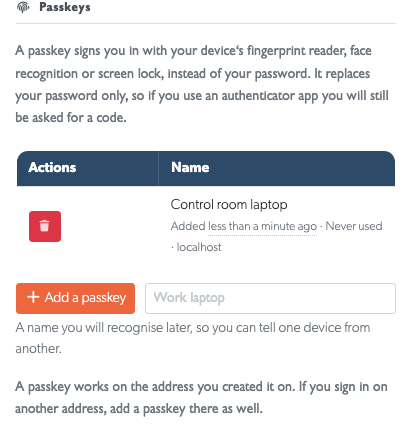
Secure from the start: New accounts set up an authenticator app first and can add a passkey straight away. Newly confirmed accounts receive an email with App Store and Google Play links and notification setup guidance. See Passkeys.
Account changes reach TetherBoxes in seconds: Removed or deactivated accounts lose local sign-in straight away, and changes the TetherBox does not confirm are retried.
Support sessions in the Audit Log: TetherX staff sessions are no longer shown to customer accounts. See Audit Log.
Italian and smaller screens: Italian joins the language menu for screens, emails and messages. On small screens, More reaches further pages and long dialogs keep Save and Apply visible.
Help by task: The Frequently Asked Questions groups related answers with a filter. The User Guide, Integrator Guide and Operator Guide collect the instructions each audience needs.
Reviews and feedback: From December, established accounts may be invited to review TetherX. Lower ratings offer a direct message to your account manager or TetherX Support. Invitations wait while a TetherBox is offline or critical, and can be postponed or dismissed.
Integrations
Lumana: Lumana AI alerts arrive in TetherX as detections on the matching camera. They open events, appear in filters and notification settings, send push and email notifications and reach a monitoring centre on monitored sites. Hover a green Lumana icon to see what was detected, such as clothing, bag or safety gear. TetherX support links Lumana cameras to TetherX cameras. See Lumana Integration.
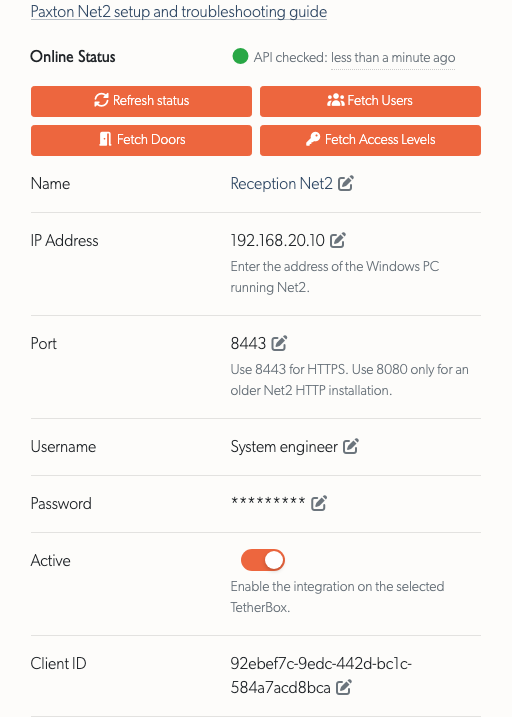
Paxton Net2 diagnostics: Health Reports gain an Access Control Issues category. Status tells a refused port, an unreachable network, a timeout and a certificate failure apart, and links to the updated setup guide. The setup form groups connection settings and masks the password. See Health Report.
Control room failure limit: When a site's Patriot, Immix, HikCentral or Manitou connection fails to deliver five alarms in a row, it is switched off and the site's administrators, integrators and distributors are emailed the reason. Switch it back on from the site page once the control room is working.
Patriot Systems: Alarms link to the full TetherX event. Observed, No Action Taken and Report Sent reach Patriot as operator notes.
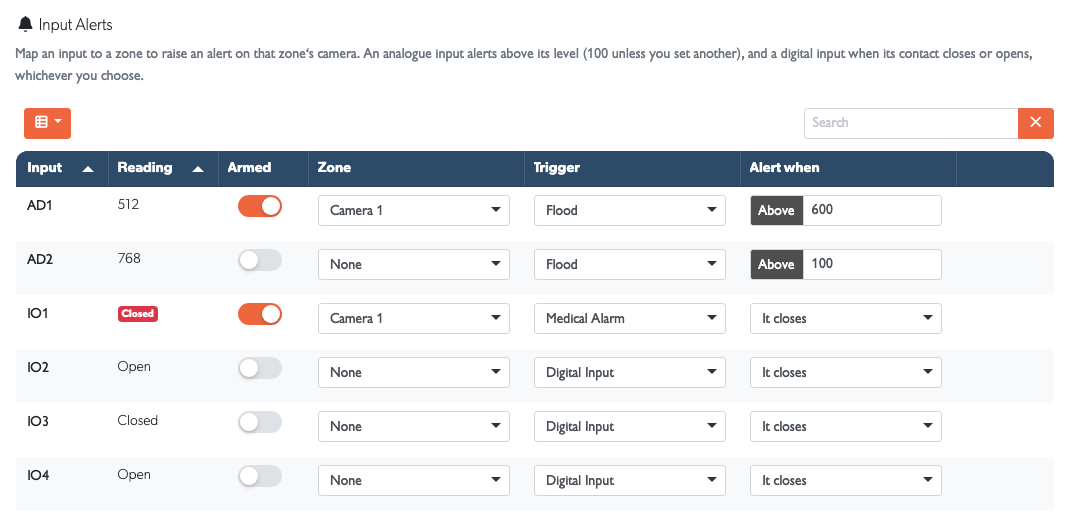
PicoFlex inputs: Each input has an alert cooldown. Panic, duress, medical, flood, fire and gas alerts bypass camera arming and recording schedules. See MicroChip.
Retired integrations: The AJAX alarm and Hikvision AX PRO integrations are removed, as no account used them.
API Changes
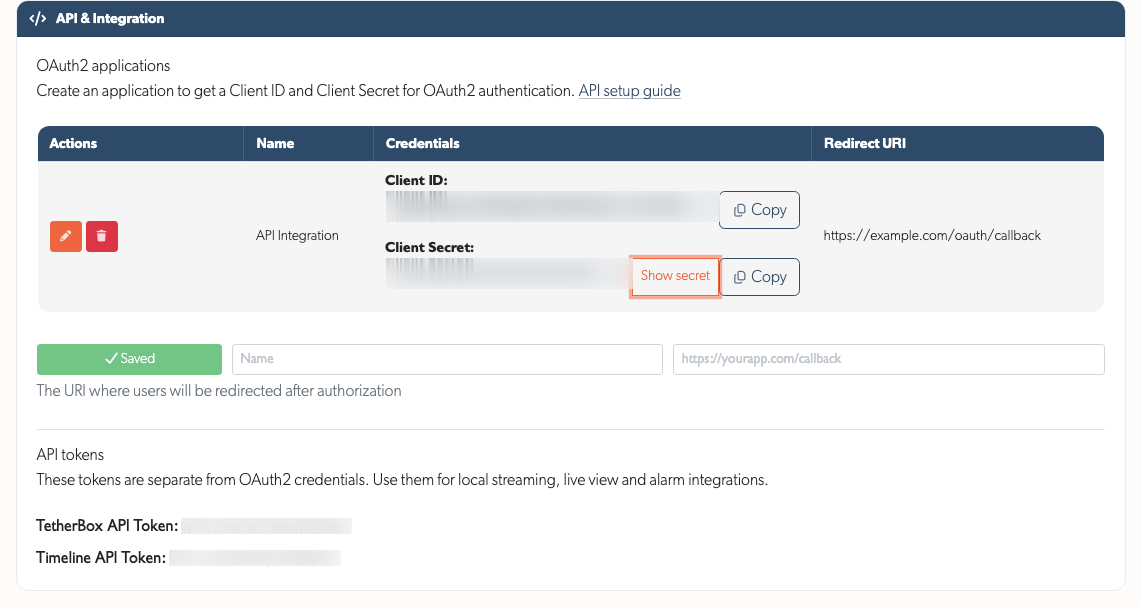
OAuth2 credentials: API Details separates applications from API tokens, showing Client ID and a hidden Client Secret with Copy buttons. See API Getting Started.
AI results: Event responses include hi-vis, hard-hat and face-covering assessments. Zone analytics adds
hard_hatalongsidehelmet, separating construction hard hats from cycle helmets.
Reliability Improvements
Playback: Seeking is immediate, clips no longer stay stuck loading, short landscape screens fit the player and seekbar, and iPhone Safari's Tap to play recovers blocked playback.
Forms and editing: Validation messages appear beside the affected field and keep what you typed. Unsaved edits survive background updates, and actions show progress without repeated dialogs. Overnight schedules, masks and counting lines keep their meaning when reopened. Errors offer a Copy details button for support.
Bulk edits: Camera bulk edits apply Off, Monitor and Record correctly and check recording and cloud changes together before applying them. Bulk edits keep No and zero values and can clear fields.
Large lists: TetherBox, camera, device, site, export and account lists load faster at 100 rows per page and sort by Active. The timelines list shows active timelines by default. Real-time updates pause above 50 rows per page, with a notice explaining how to resume them.
Faster on busy systems: Camera status reports, new recordings and event updates do less repeated work, and browsers reuse unchanged libraries after platform updates.
Access and sign-in: Site restrictions apply consistently to footage, real-time updates, exports and attachments. Google sign-in offers account selection, and activation emails include a copyable link.
Reseller branding: Resellers whose logo ships with the platform see it in the sidebar, terms dialog and empty event tiles.
Timeline switching: Events, Rules and Admin pages stay on the timeline the browser tab shows.
Smaller fixes: Address search accepts partial and international addresses, device tunnels open immediately, factory resets complete, map credits stay folded, long comments wrap, and dialogs respect reduced-motion settings.